Your cloud.
Your terminal.
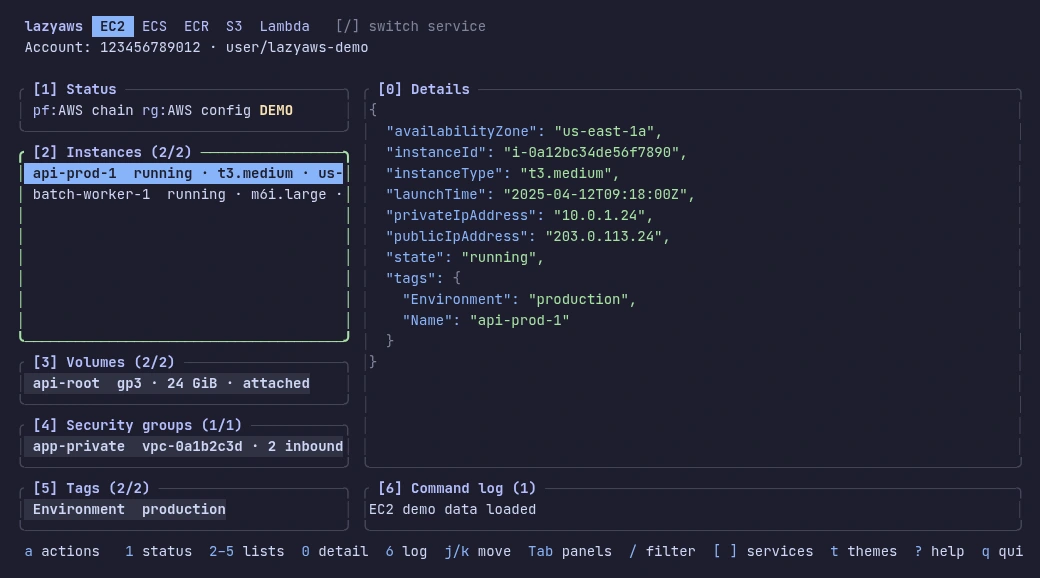
Meet Lazy AWS. A keyboard-driven home for your AWS resources.
Browse, inspect, and act. Without the console shuffle.

Less setup.
More getting things done.
We support macOS, Ubuntu, Arch Linux, and Omarchy. Windows is not supported.
Choose curl or Homebrew to install on macOS or Linux. Then run the demo or connect your AWS account. Debian installs are available without a support guarantee. AWS CLI v2 and credentials are needed only for your AWS account.
- 1
Install with curl
Install the binary to ~/.local/bin. Add this directory to your PATH if needed.
terminalcurl -fsSL https://lazyaws.xyz/install.sh | sh - 2
Or install with Homebrew
Install from our tap on macOS or Linux with Homebrew.
terminalbrew install capybara-brain346/tap/lazyaws - 3
Run the installed demo
Start with local sample data. No AWS account or credentials needed.
terminallazyaws --demo - 4
Connect your account
Use an existing AWS CLI profile. Sign in first if your profile uses SSO.
terminalaws sso login --profile dev lazyaws --profile dev --region eu-west-1
A small learning curve.
A lot less clicking.
Three stops. Then you know your way around.


Find your bearings.
Switch services, move between panes, and select a resource. Your account and region stay in view.
View demo capture 
Go one level deeper.
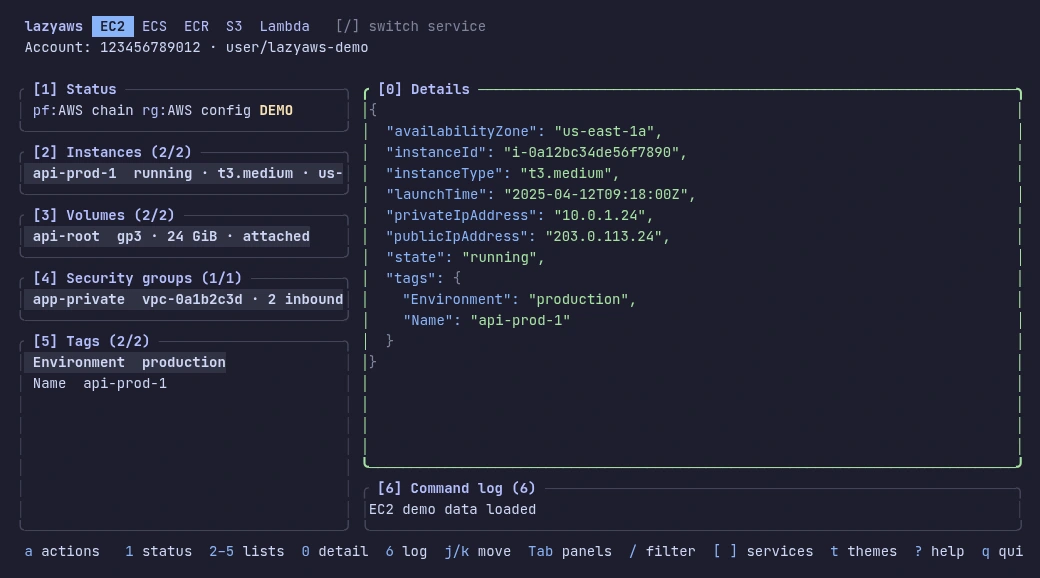
Filter a list, then open the selected resource’s JSON details. Related resources are right beside it.
 View demo capture
Know what will run.
Open an action and review the account, target, and exact AWS CLI command. Run it only when you confirm.
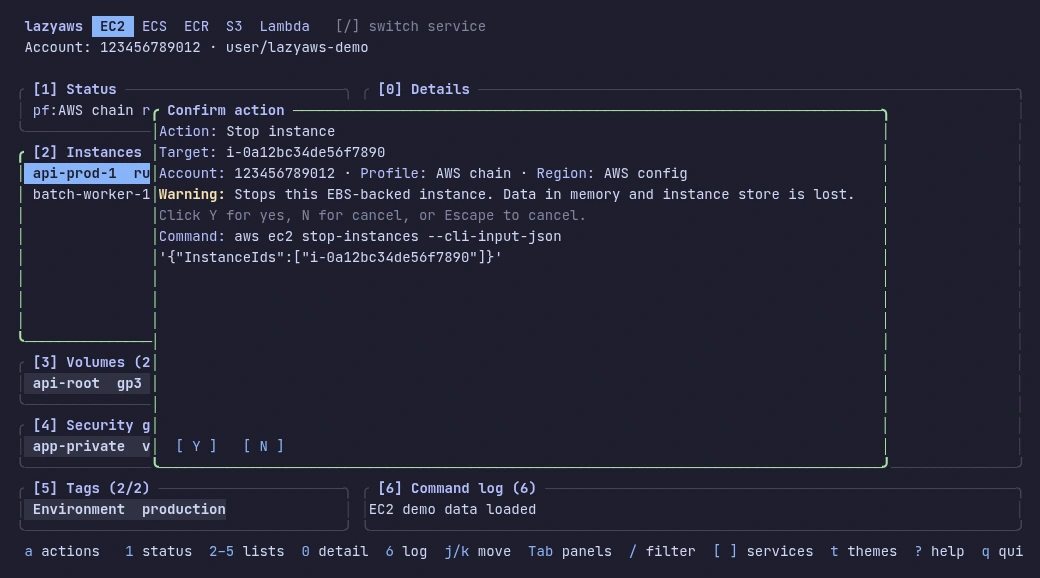 View demo capture
That’s the short version. Explore the service guide